Choose suggested products
Open order settings in the restaurant dashboard. Enable cart suggestions and select the relevant menu items.
Restaurant sales tools in Foodyo
Foodyo shows your selected add-ons in the cart. After an order is complete, guests can order again and leave a review on Google.
Choose products and prices from your own menu.
Choose a plan when you publish your website. Classic burgerPLN 38.00
Up to three available suggestions from your menu.
Previous order items at current prices.
Give guests a review link once the order is complete.
Choose up to 10 items from your existing menu, such as fries, Coca-Cola or dessert. When a guest adds something to the cart, Foodyo shows them up to three available suggestions.
Suggestions use the same prices, photos and availability as the rest of your menu.
Foodyo skips items that are unavailable or already in the cart. Guests select any product options or extras as they would from the menu.
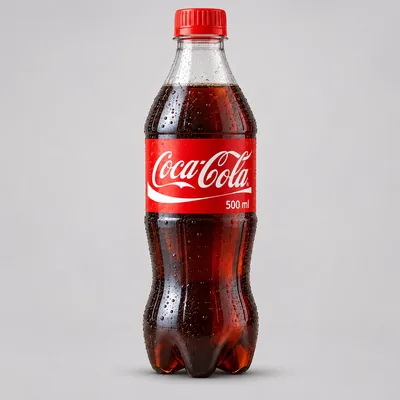 Coca-ColaPLN 8.00
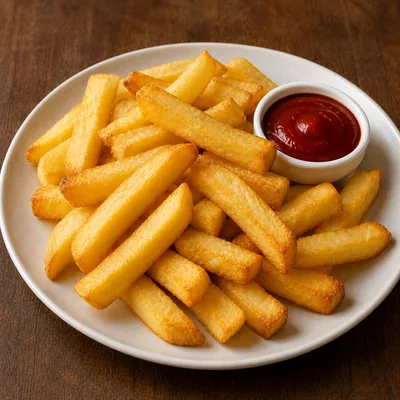 FriesPLN 10.00
 Garlic saucePLN 3.00
Guests open their order link to see its current status and the items they ordered.
Edit this page in the Foodyo website editor. Once the order is complete, it can show “Order again” and “Leave a Google review” if you enable these features.
See how the ordering system worksCollection
On a completed order’s status page, guests select “Order again”. Foodyo checks availability and shows current prices. Guests confirm the items before placing a new order.
Paste your review link from Google Business Profile. Once the order is complete, guests see the button on the status page and can leave their own review on Google.
Start with a published menu and online ordering.
Open order settings in the restaurant dashboard. Enable cart suggestions and select the relevant menu items.
Check that repeat orders are enabled. Copy the review link from your Google Business Profile and save it in your order settings.
If you published the site before these features became available, update it in the editor. Test the cart and open a completed order’s status page.
Both plans include your website, menu, cart and order dashboard. Start publishes on a Foodyo subdomain and Pro supports your own domain.
Your website addressyourname.foodyo.pl
PLN 588 net paid upfront for the year
Or PLN 59 net with monthly billing.
Your website with a .pl domain includedyourname.pl
PLN 1188 net paid upfront for the year
Or PLN 109 net with monthly billing.
Choose your plan and address when publishing. Creating a preview is free.
Upselling means suggesting a more expensive version of a dish, such as a larger pizza. Cross-selling means suggesting an additional product, such as a drink or sauce. Foodyo’s “Add to your order” section supports cross-selling by showing menu items selected by the restaurant in the cart.
Suggest extras at their regular prices before checkout. For example, if guests add a PLN 8 drink to 10 out of 100 orders, average order value rises by PLN 0.80, with everything else unchanged. This is an illustrative calculation, not a measured result from Foodyo restaurants. After enabling suggestions, compare order value, margins and completed purchases.
Choose a few products that fit your menu: fries with burgers, sauces with pizza, drinks with lunch or dessert. Consider availability and margin. In Foodyo, you select the menu items yourself; the system does not automatically personalise them to each guest’s tastes.
Open order settings in the restaurant dashboard, enable cart suggestions and select up to 10 menu items. Once the cart contains an item, Foodyo shows up to 3 available suggestions. Products already in the cart are excluded from the suggestions.
No. In Foodyo, an item enters the cart only when the guest selects it. If it requires options or extras, the guest chooses them as they would when ordering from the menu. They can remove the item before placing the order.
Foodyo skips unavailable items using the current menu and availability rules. Suggestions share the same prices and photos as your menu items. You do not need to create a separate product for the cart.
If repeat orders are enabled, guests see “Order again” on a completed order’s status page. Foodyo checks the items against the current menu and asks the guest to confirm them. The guest then reviews the cart and places a new order. Clicking “Order again” alone does not place an order or take payment.
No. Foodyo uses current prices and ordering rules; previous discounts are not automatically restored. If a dish is no longer on the menu or its options and extras no longer match, guests see which items were skipped before confirming the cart.
Yes. Guests review the items and select a new available date. The previous fulfilment date is not copied. Current prices, availability and the catering calendar apply.
Copy your review link from Google Business Profile and save it in Foodyo’s order settings. Once an order is completed, a button on its status page takes the guest to Google. Foodyo does not publish a review on their behalf or show the request before the order is complete.
No. Foodyo shows the link on completed orders without asking for a rating first or offering an incentive. Each guest decides whether to leave a review and how to rate the restaurant.
Yes. Select the order status page in the Foodyo website editor and edit it like your other restaurant pages. Guests see the current status and details of their order. After completion, the page can also show repeat ordering and Google review buttons if you configure those features.
Create a preview of your own website with a menu and cart. Choose a plan when you decide to publish.